The accessibility button in your portal helps adjust how things look or work based on your preferences. If you don’t want to use it, you can either turn it off completely or hide it from your screen.
Turn Off the Accessibility Button
If you don’t plan to use the accessibility features at all, you can turn the button off.
Click your profile picture in the top right corner. Select Accessibility Widget from the menu. Switch it to Off.
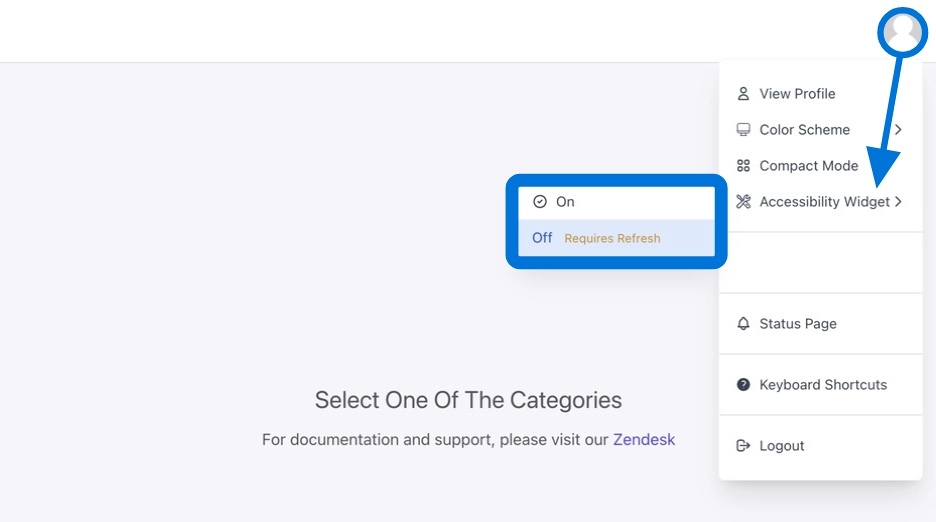
This will turn off the button on all browsers and devices where you use your account. You can turn it back on at any time.
Hide the Button from Your Screen
If you just want to hide the button for now, you can move it or make it disappear from your screen
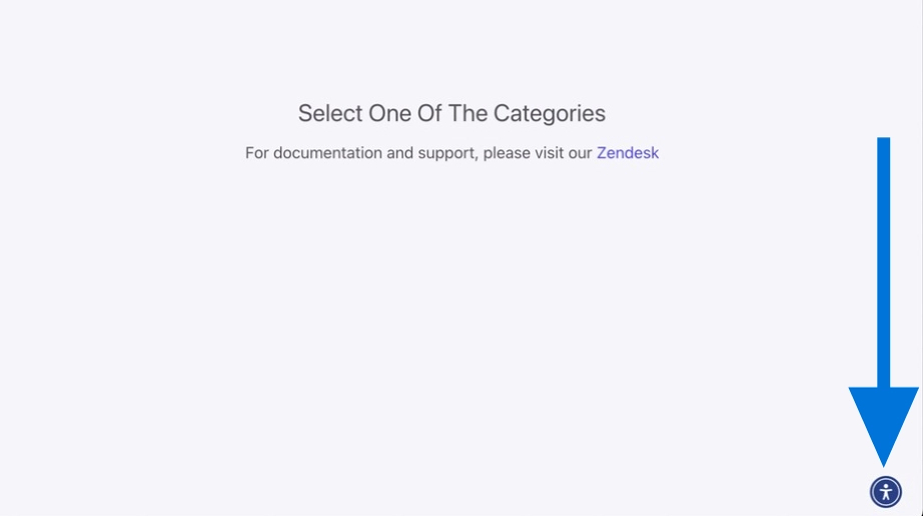
Click the accessibility button on your screen.
Scroll down to Move/Hide Widget.
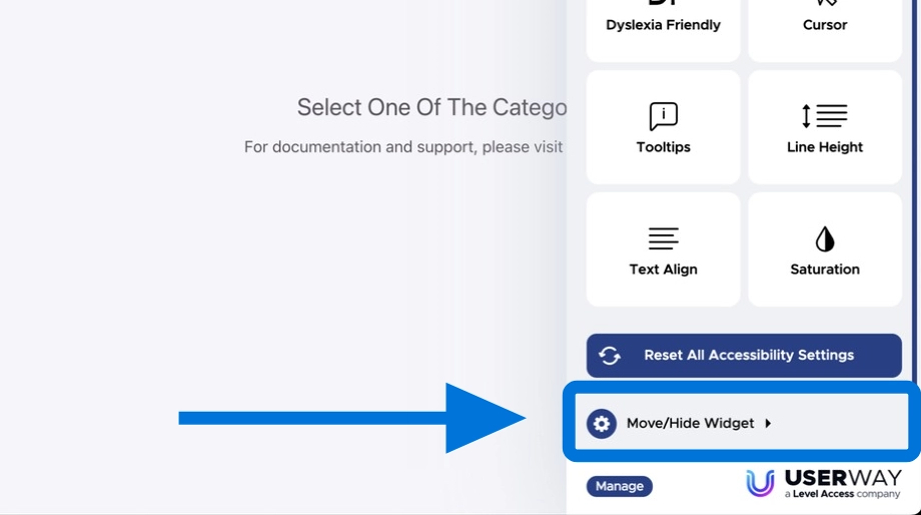
Choose how long you want to hide it, such as just for today, or longer.

Note: Hiding the button only works on the browser you’re using. If you clear your cookies or log in from another device, the button will come back.