You may be asked to upload documents, images, or other files through the resident portal as part of your housing process. These attachments help your housing office review important information related to your application or residency.
Upload Attachments from the Dashboard
Log in to the resident portal and go to the Dashboard.

Locate the Attachments card. Click the upload icon or drag a file into the upload area to add a document, image, or scan from your device.

Upload times may vary depending on file size. If your file is large, a loading icon may appear.

Note: File uploads have a 5MB size limit. Some file types may not be supported.
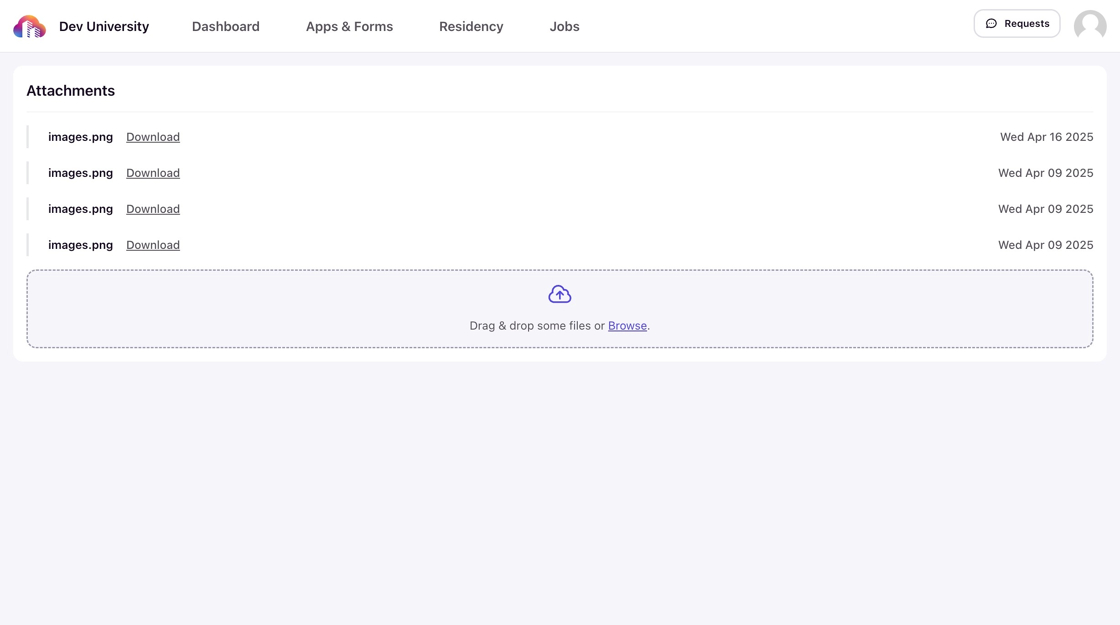
Once uploaded, the file will appear with a timestamp and a download option. You’ll be able to view or download it later if needed.

Upload Attachments to a Housing Application
Attachments can also be linked directly to a specific application under Apps & Forms.

Click Additional Docs.
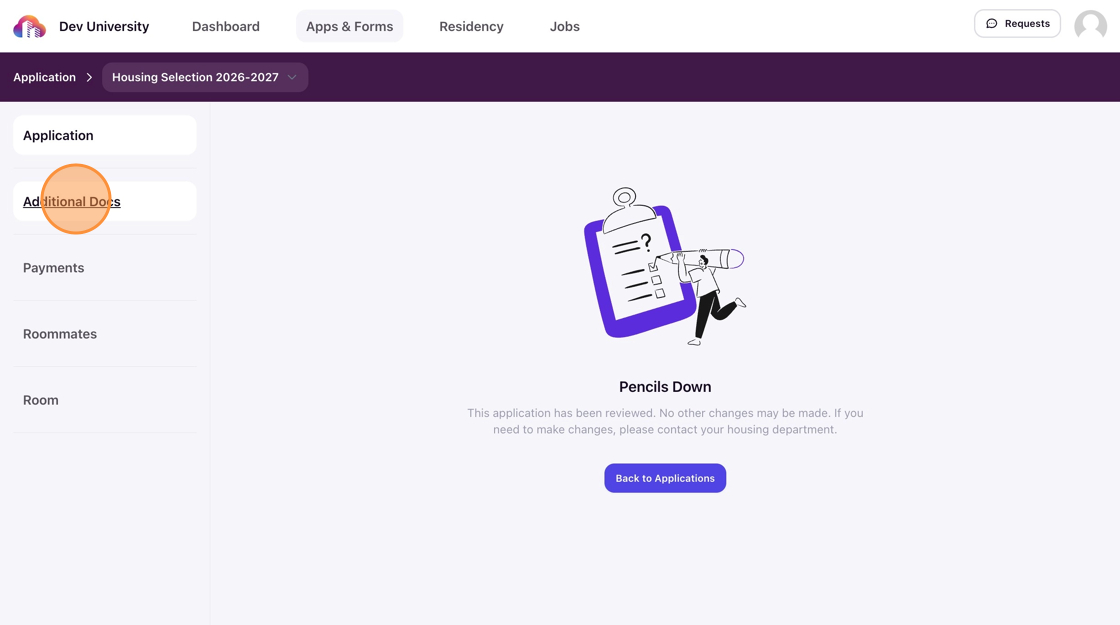
Use the attachments card to add documents related to that housing application, just like the Dashboard option.

View All Uploaded Attachments
To see all files you’ve uploaded, click View All Attachments in the same section.
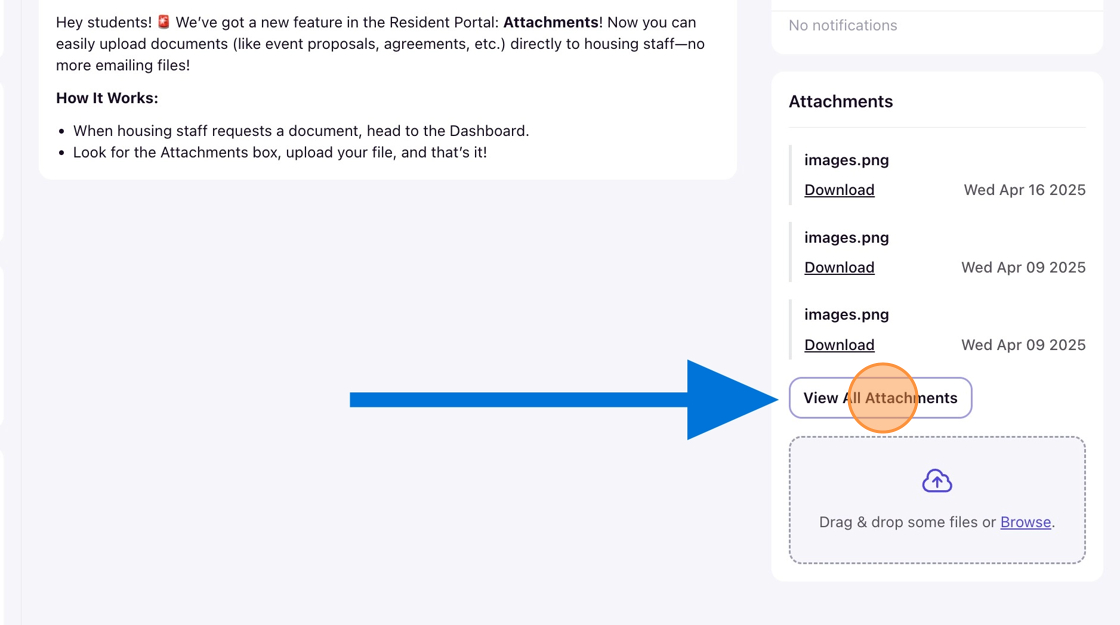
You’ll see a list of every file you’ve submitted through the portal.
Delete Attachments
Students cannot delete attachments directly from the resident portal. If you uploaded the wrong file or need a document removed, reach out to your housing department. They can review the file and remove it on your behalf if needed.
Once a file is deleted by a housing staff member, it will no longer appear in your portal and cannot be restored.