Meal plans provide flexible dining options for students, but the ability to view, select, or update your plan may depend on your institution’s timeline and policies. If enabled, you can review available options, choose a meal plan that fits your needs, and, if offered, add flex points — all within your housing application.
Some features, such as removing or swapping plans, may only be available during specific timeframes. If you don’t see an option you expect, reach out to your housing office for help.
Access Your Meal Plan Options
Log in to the resident portal and open the Apps & Forms section and click Manage or Start next to the application you’d like to update.

From the application dashboard, select Meal Plan from the housing experience options.

Review Available Plans
The Meal Plans screen shows all available meal plans and, when applicable, flex points plans and your purchase history. This screen may vary depending on your institution’s meal plan timeline or available options.

Use the arrow toggle to view additional details for each plan.

Select a Meal Plan
Once you’ve chosen the plan that fits your needs, click Select Plan to confirm your choice.

Note: If your school assigns a default meal plan, it will be added automatically per their defined timeline.
Select a Flex Points Plan
If flex points plans are offered, you’ll see them listed separately under Browse Flex Plans.
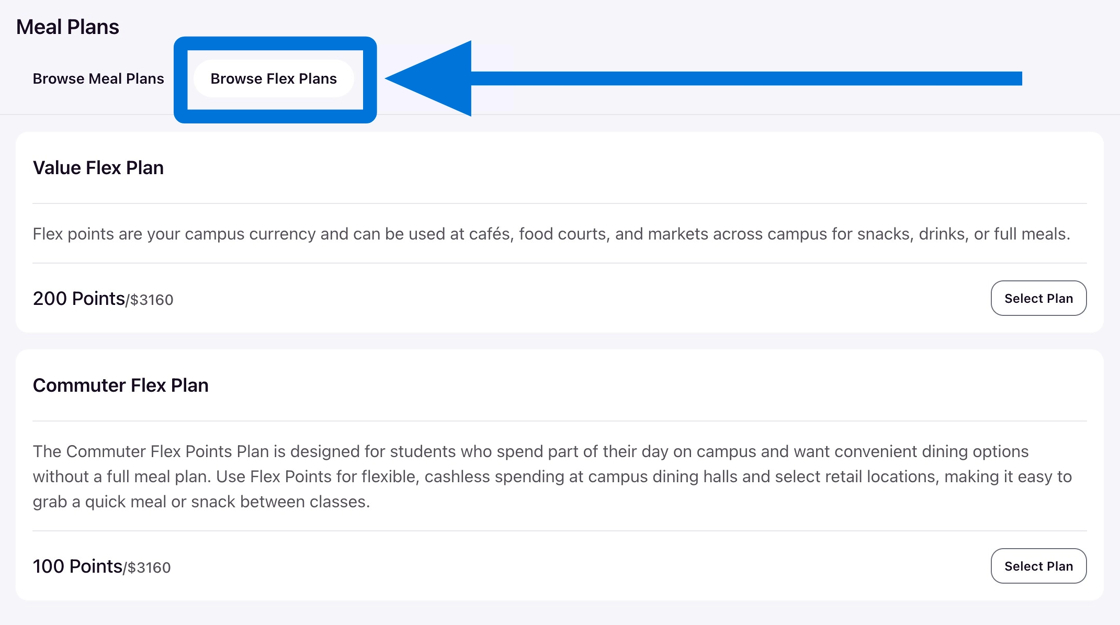
Note: Not all schools offer flex points through the resident portal. If you have questions, contact your housing office.
Remove or Swap a Plan
You may be able to remove your current selection by clicking Remove Plan. Once removed, you can choose a different option. Optionally, you may be able to select a new plan to replace your currently selected plan.
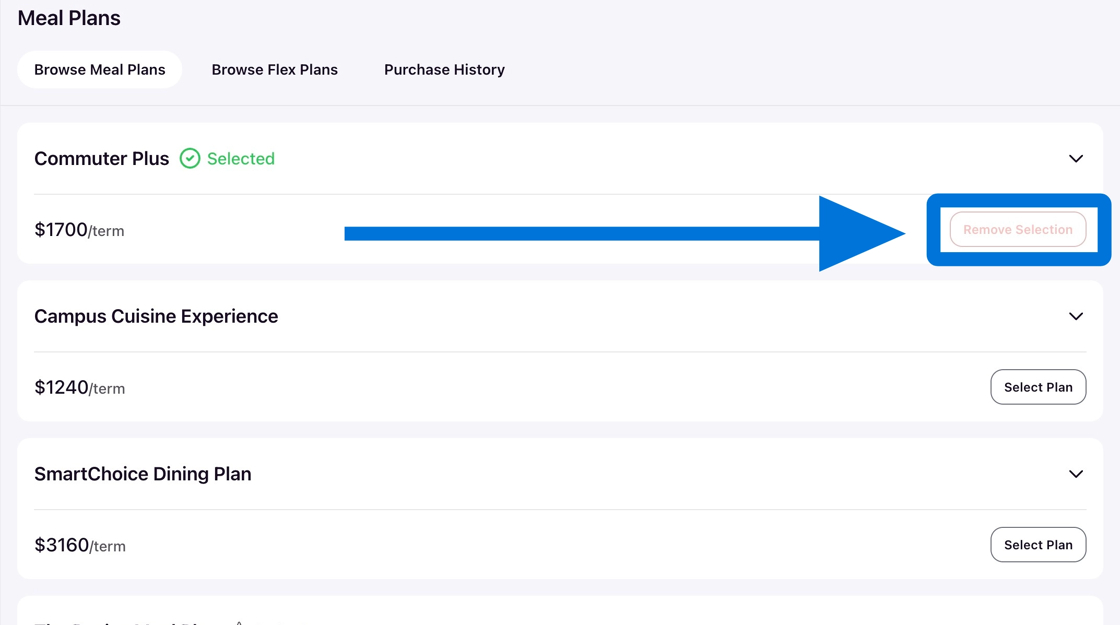
Note: Meal plan changes may be restricted after certain deadlines. If you can’t make updates, contact your housing department.
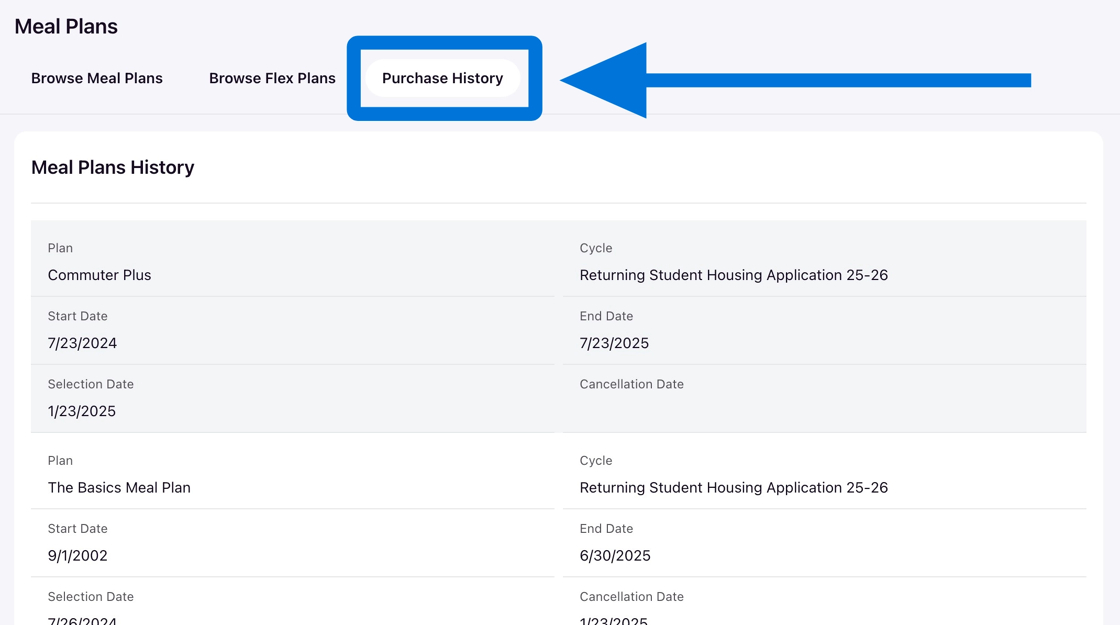
View Your Meal Plan History
Your full history of meal plan selections and purchases is available under Meal Plan History in the resident portal.