The Key Dates and Next Steps page in your resident portal shows everything happening in your housing process. You can toggle between two views: Key dates for a timeline of what's coming up, and Action items for your checklist and progress. The default view is Action items. The page refreshes every minute to keep status labels current.
Key dates view
The Key dates view shows a timeline of active and upcoming events in your housing process. Each card shows a name, date range, and a status badge.
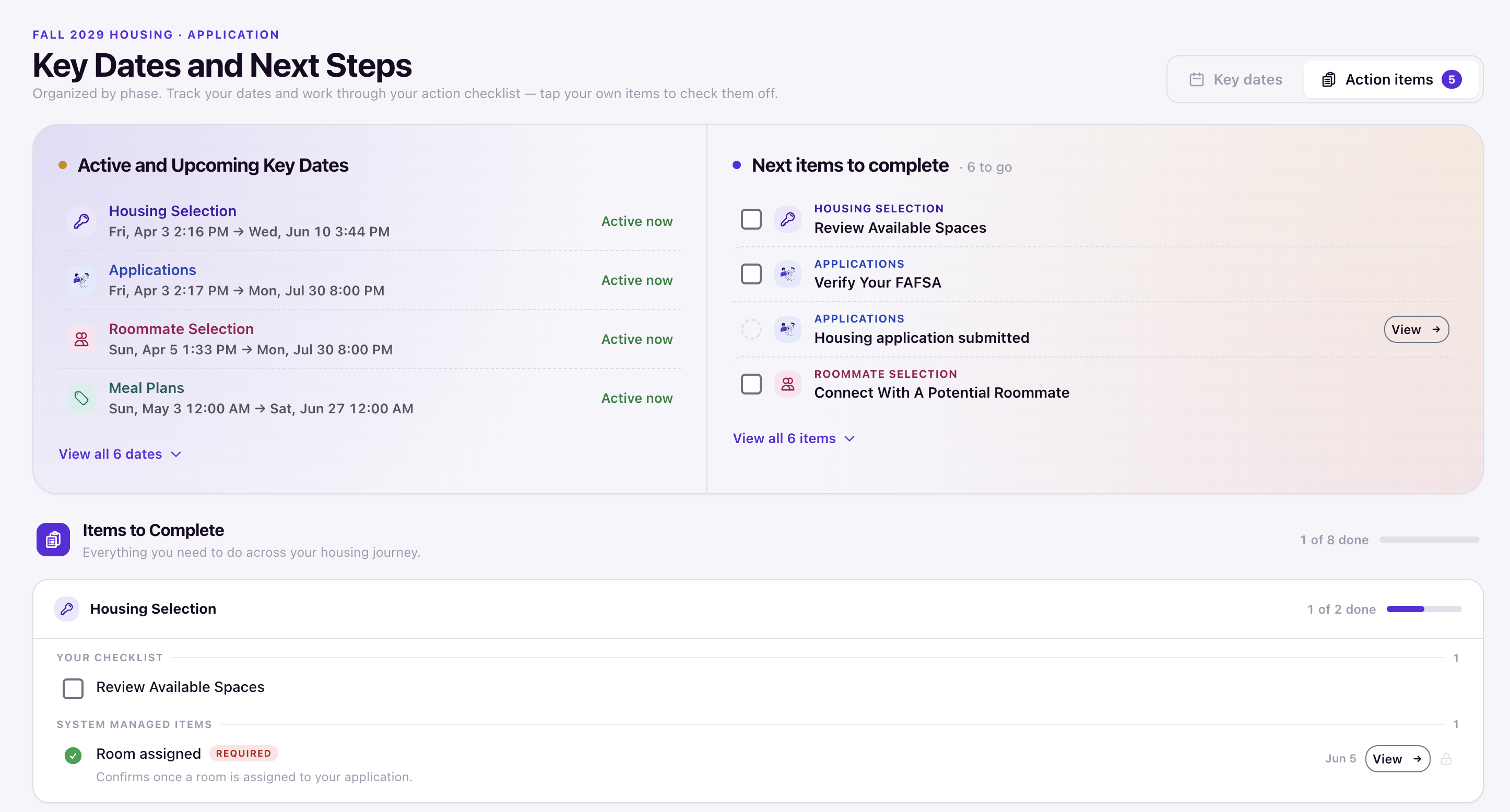
Status badges you may see:
- Active now — The window is currently open.
- Upcoming — The event has appeared on your timeline but has not started yet.
- Countdowns like Closes in 2 days or Opens in 3 days — How much time remains before the window closes or opens.
Your timeline is organized into sections such as Applications, Roommate Selection, Housing Selection, Meal Plans, Move In, Room Swap, and Move Out. If something is not visible yet, your housing team has not added it to your timeline.
Click View all dates to see the full list.
Action items view
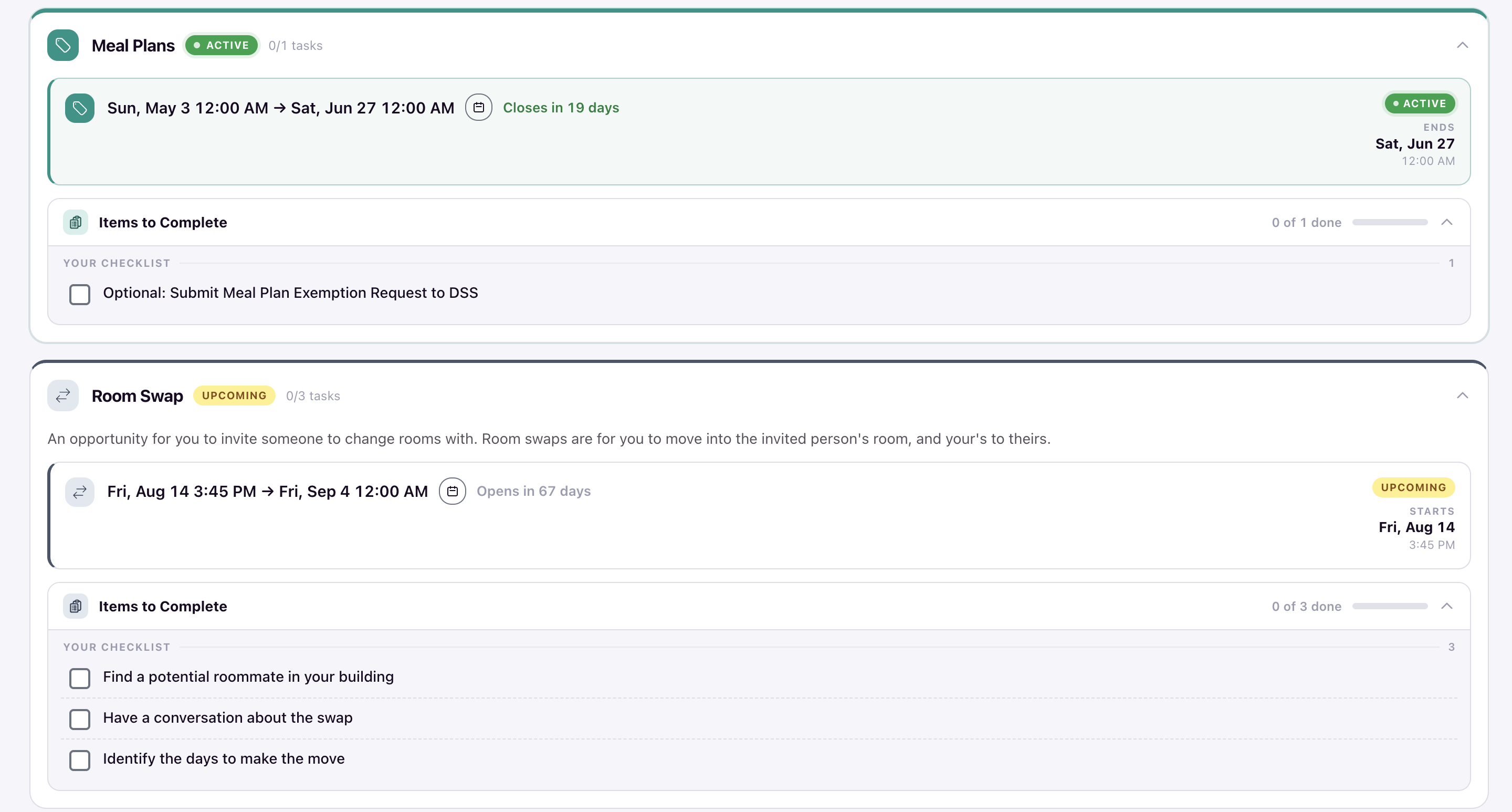
The Action items view shows your Items to Complete organized by section. Each section shows a progress count, such as 1 of 2 done or 0 of 3 done. The tab also shows a total count of remaining items, such as Action items 5.
Click View all items to see the full list.
Your checklist
These are tasks your housing team has created for you to complete. Check the box next to each item as you finish it. Your progress is saved, so checked items stay checked if you leave the page and come back.
System-managed items
These are read-only progress items that update automatically based on your actions. You cannot check them off yourself. They show whether you have completed key milestones.
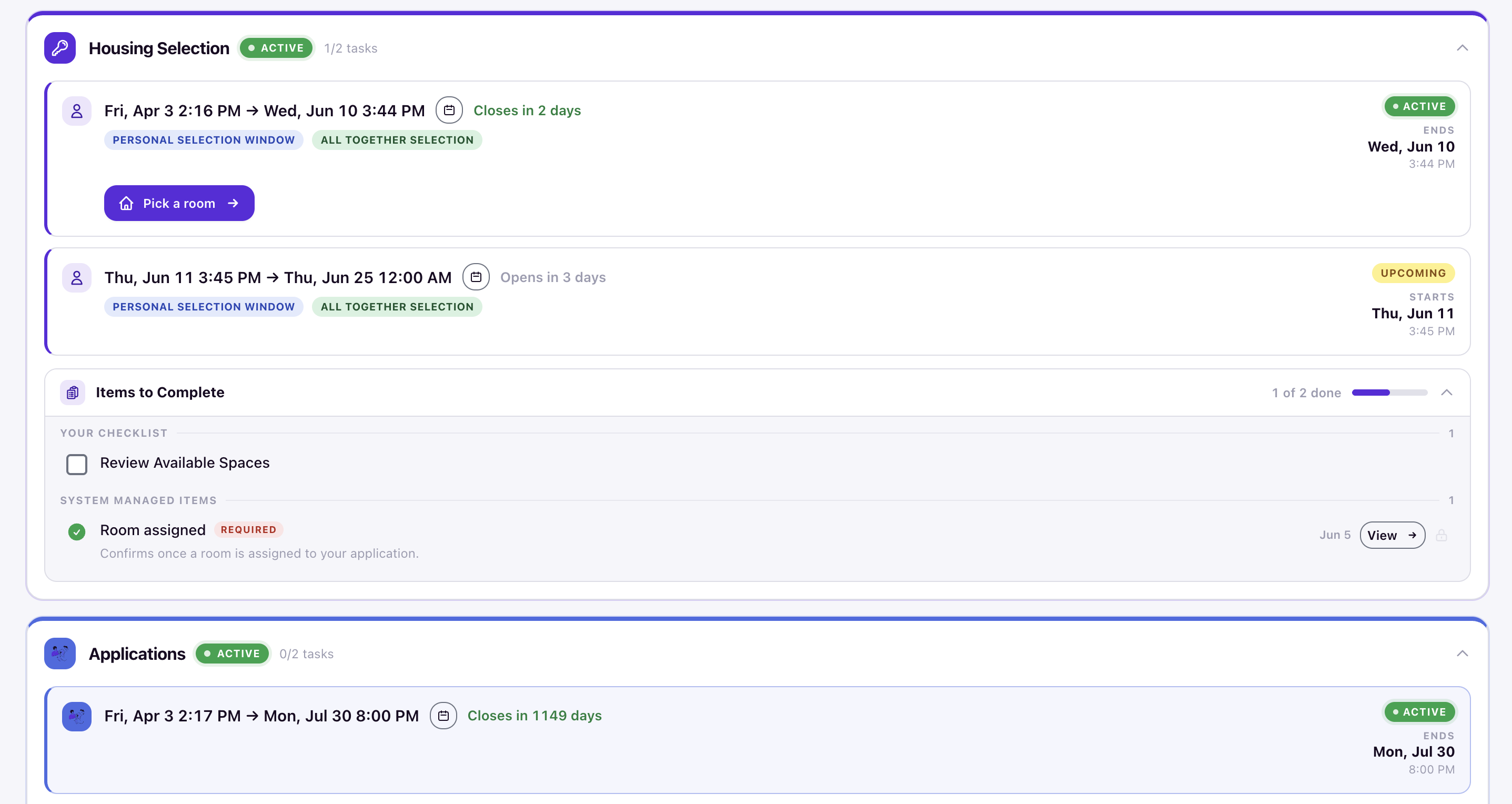
Verified items include:
- Housing application submitted
- Housing deposit received
- Documents signed
- Roommate group formed
- Room assigned
- Move-in time reserved
- Moved out
Each item shows a Required or Optional badge. Some items have a View button that takes you to the relevant page to complete the action. For example, clicking View on Housing application submitted takes you to your application page.
Descriptions help you understand what triggers the item:
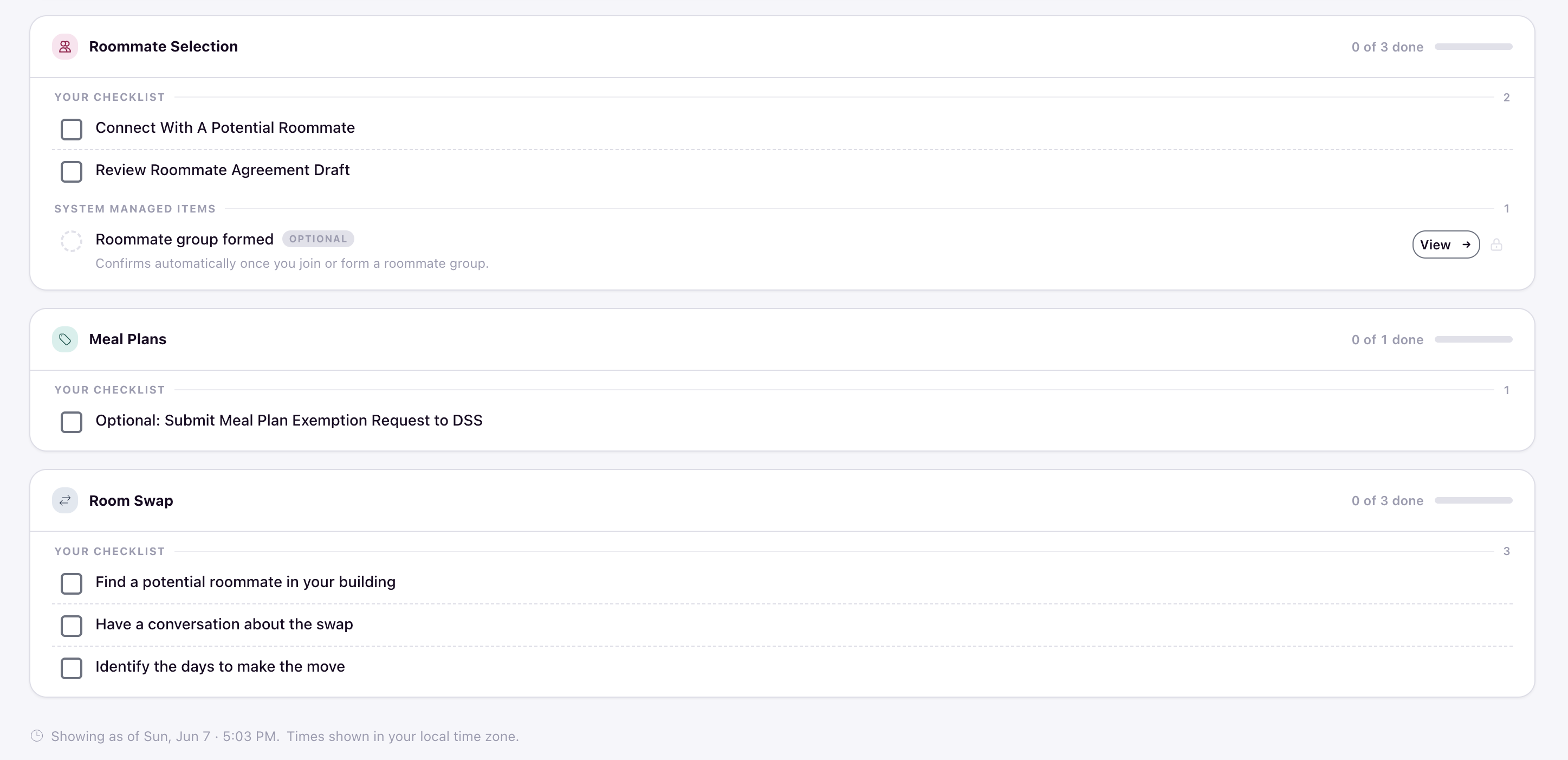
- Room assigned — "Confirms once a room is assigned to your application."
- Housing application submitted — "Detected automatically once you submit your application."
- Roommate group formed — "Confirms automatically once you join or form a roommate group."
What to do if something is missing
If you expect an event or action item but do not see it, one of the following may be true:
- The item has not been added to your timeline yet by your housing team.
- The window has not opened yet.
- You are not eligible for that step based on where you are in the process.