To ensure every resident has appropriate meal plan options within a housing cycle, Housing.Cloud enables administrators to add specific meal plans, set default options, and configure prorated billing for later selections. Learn more about creating and editing meal plans here.
Click Housing Cycles from the Setup section of the admin portal.

Click the housing cycle name to access cycle configurations.

Click Meal Plans from the housing cycle options.

Click Edit to manage meal plans associated with the housing cycle.

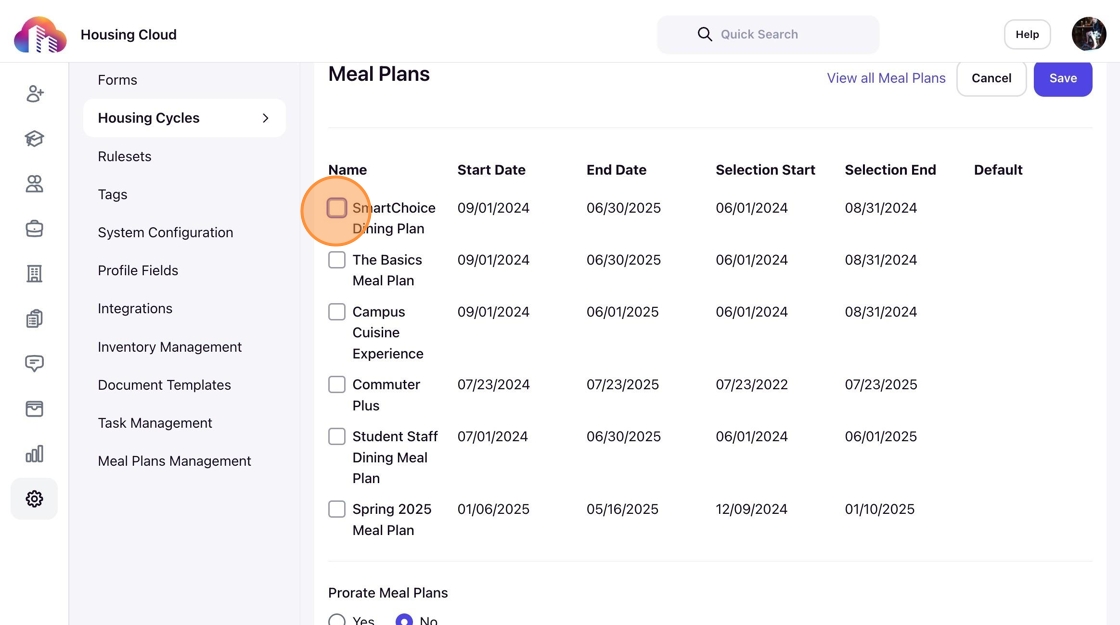
All meal plans created in Housing.Cloud will populate this screen. Click the checkboxes for the meal plans you would like to have enabled for this specific housing cycle.
Select a Default Meal Plan
Click the star icon next to any active meal plan to set a default plan for this specific housing cycle.

Note: Active meal plans must have current selection start and end periods.
A default meal plan will automatically be assigned to residents who do not make a selection by the end of the selection period. If no default plan is selected, meal plan choices remain optional for residents in this cycle. To exclude specific residents from default assignments, you can add an applicability tag for exemptions. Learn more about applicability tags here.

Enable Prorated Billing for Meal Plans
Toggle Yes to enable proration for meal plans selected after the configured start date. This setting adjusts the cost based on the remaining period of the meal plan. Toggle No if meal plans should charge the full rate regardless of the selection date.

Click Save to confirm your meal plan configurations for the housing cycle.

Default Meal Plans in the Resident Portal
Assigned meal plans are accessible in the Resident Portal under Meal Plans. Default plans are marked with a star icon for easy identification.
