Overview
Tags are labels that organize and categorize data throughout Housing.Cloud. This article introduces you to what tags are, how they work, and how tags drive organization, filtering, and automation. You'll learn tag basics now, and PLS-3 will teach you how to create and configure tags.
Estimated Time to read this PLS: 10-15 minutes
What you'll learn: What tags are, the different types of tags (profile, application, inventory, task), public vs private tags, tag categories, how tags drive automation, and tags vs custom fields.
This is a basic introduction and overview of tags.
How to create and use tags will be gone into depth more in PLS-4.
Prerequisites: This article assumes you understand basic filtering covered in PLS-1E: General UI Patterns. Tags enhance filtering by adding categorized labels to data.
What are Tags?
Tags are customizable labels that categorize students, applications, and inventory. Think of them as color-coded sticky notes you can attach to profiles, applications, rooms, or beds.
Tags serve three main purposes:
- Organization: Coordinate students by cohort, preference, or characteristic (Athletes, First-Years, International Students)
- Filtering: Quickly find specific populations (Show me all residents with tags "First-Year Students" and "Accessibility Needs")
- Automation: Drive workflows and matching rules (Match students with the same "Sleep Schedule" tags, Only show "Honors Housing" rooms to students with "Honors Program" tag)
Example: Sarah Johnson's profile has tags: "Class of 2028," "Pre-Med," "Athlete - Soccer." Her Fall 2024 application has additional tags: "Early Move-In Approved," "Roommate Request: Emily Davis." These tags help you filter, report, and match Sarah appropriately.
Tag Types: Where Tags Live
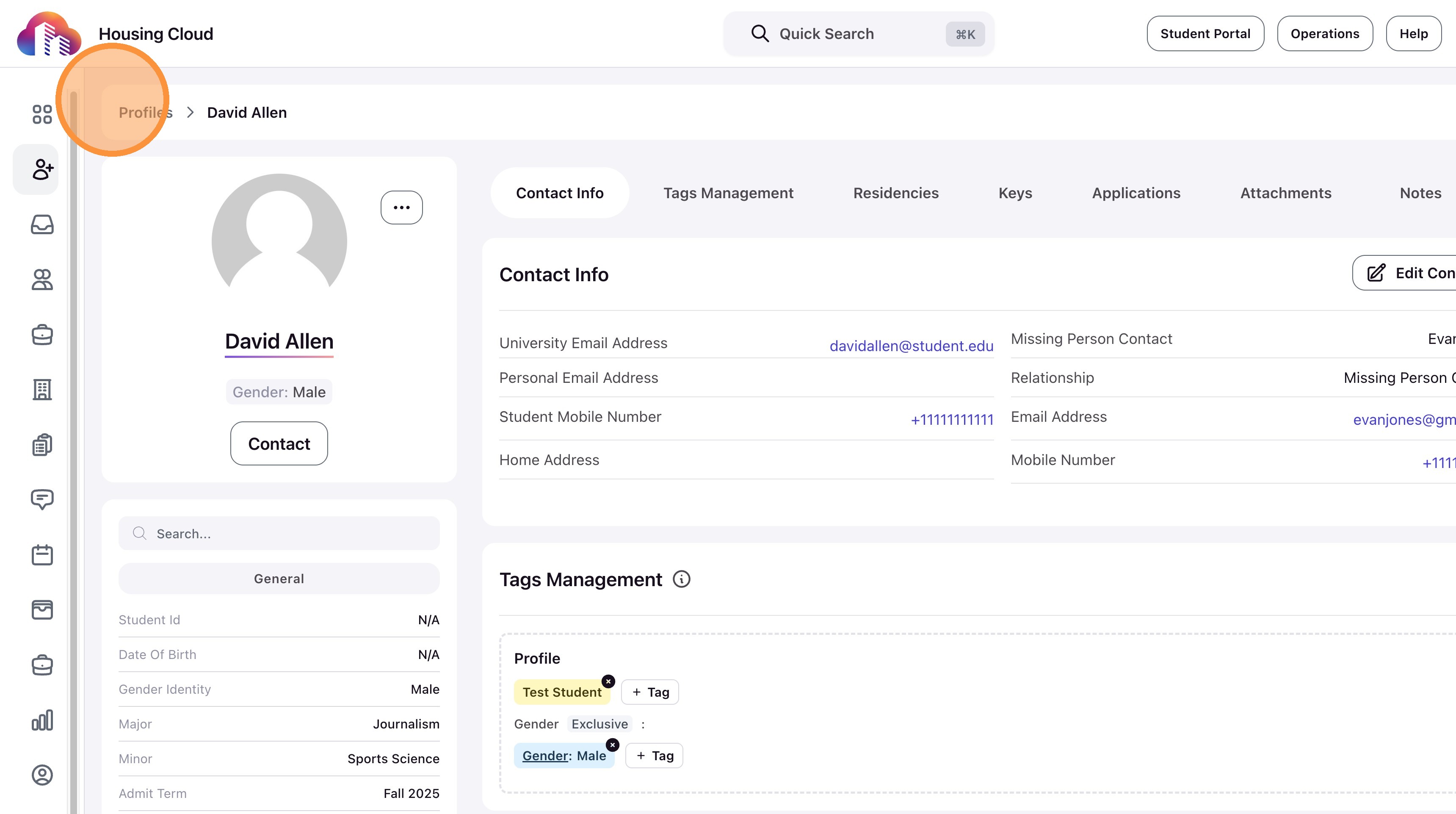
Profile Tags
Attached to student profiles. These are permanent characteristics that don't change based on housing cycles.
Examples: Class of 2028, Transfer Student, Student-Athlete, International Student, Honors Program, Wheelchair Accessible, Service Animal
Where you see them: Profiles section, profile detail pages, filters across all sections
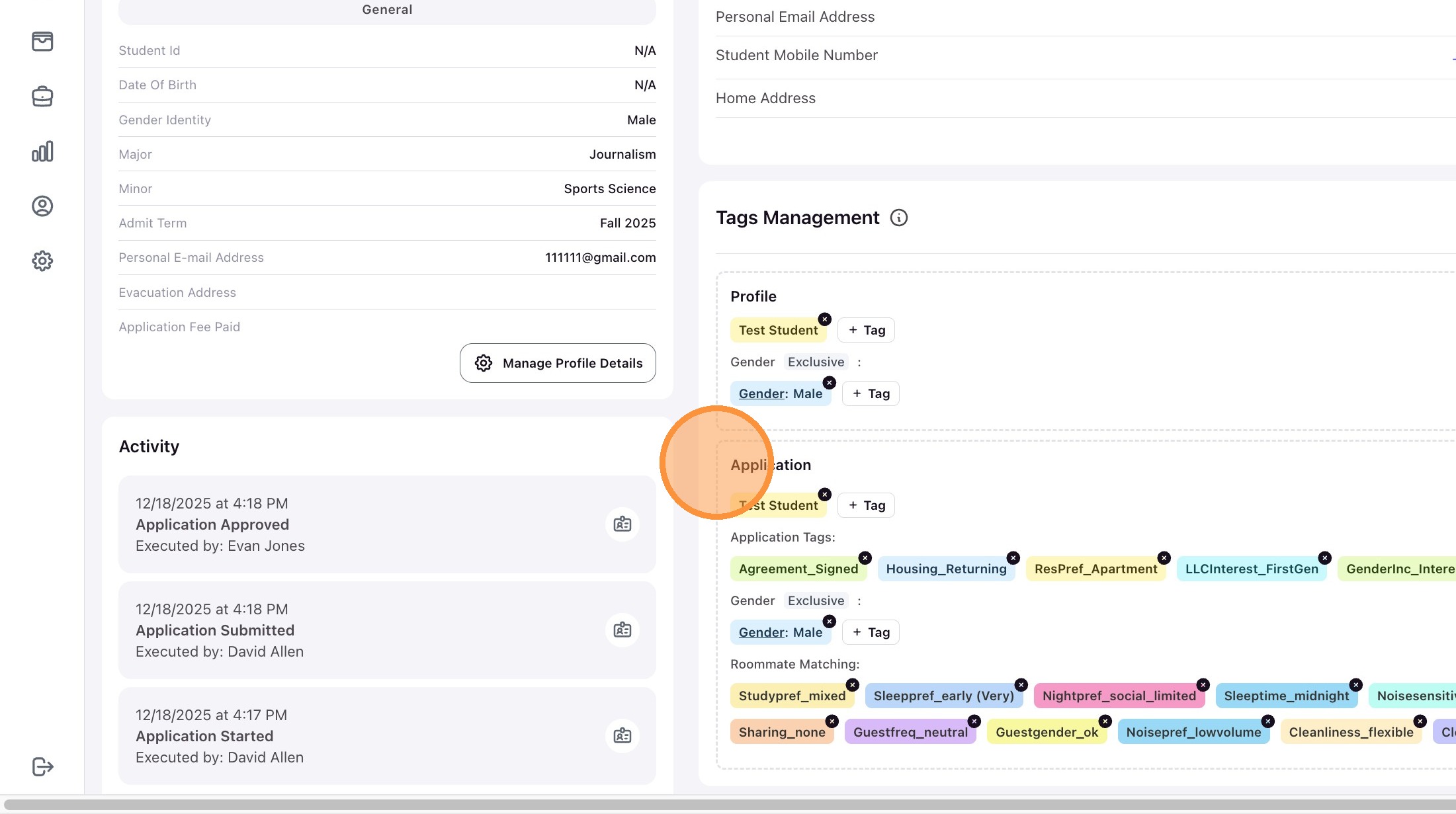
Application Tags
Attached to students' applications for the respective cycle. These are cycle-specific labels that may differ between Fall 2024 and Spring 2025 applications for the same student.
Examples: First Choice: East Hall, Priority Review, Special Accommodation Approved, Early Move-In, Roommate Request Pending
Where you see them: Applications section, application detail pages
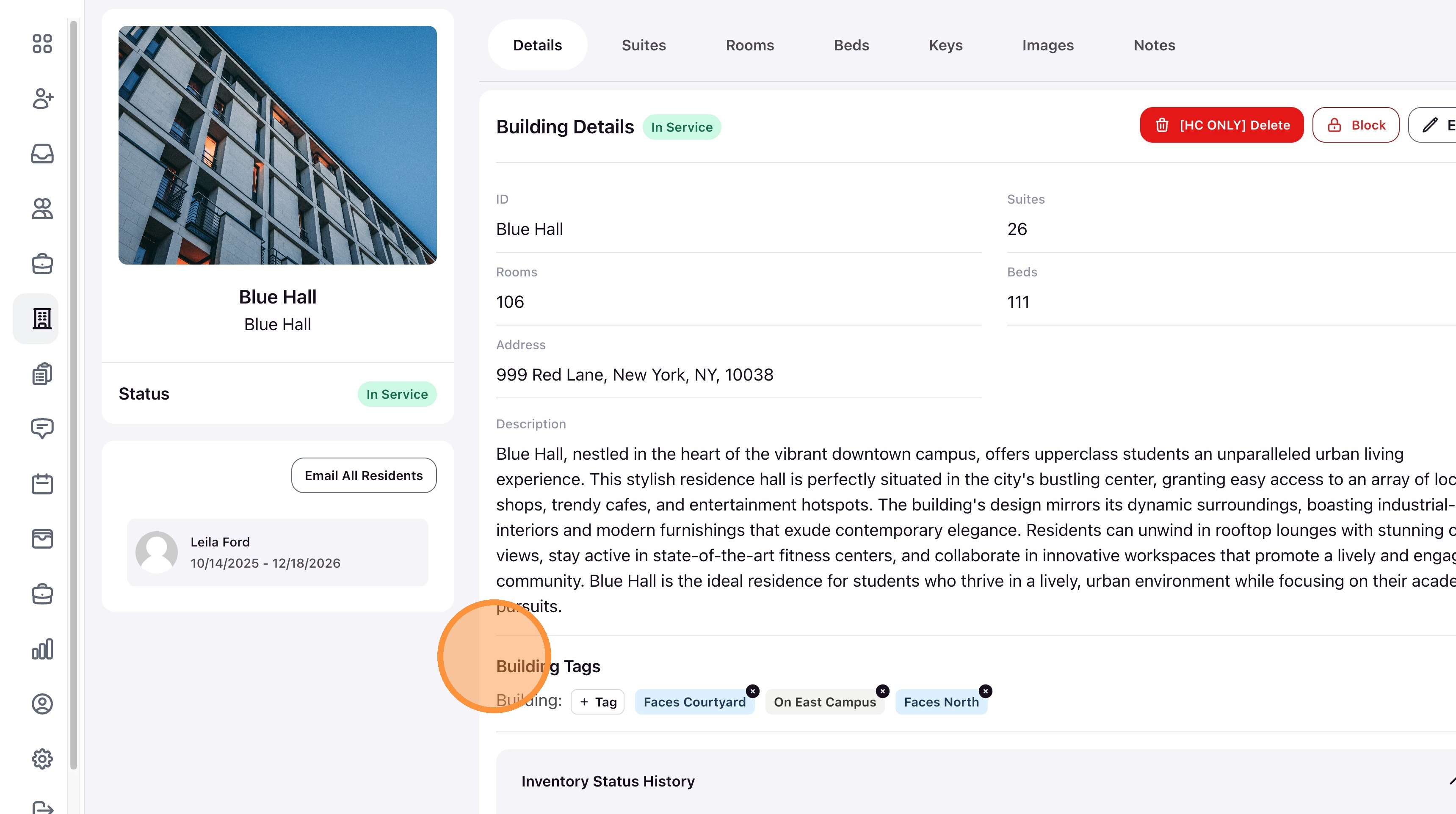
Inventory Tags
Attached to buildings, suites, rooms, or beds. These describe physical characteristics or designations.
Examples: ADA Accessible, Private Bathroom, Air Conditioned, Honors Housing, Substance-Free, First-Year Only, Kitchenette, Renovated 2024
Where you see them: Inventory sections (Buildings, Rooms, Beds), occupancy reports, student room selection interface
Task Tags
Attached to maintenance requests and work orders to categorize and route them.
Examples: Plumbing, Electrical, HVAC, Urgent, Routine, Facilities, Custodial
Where you see them: Tasks section, task detail pages
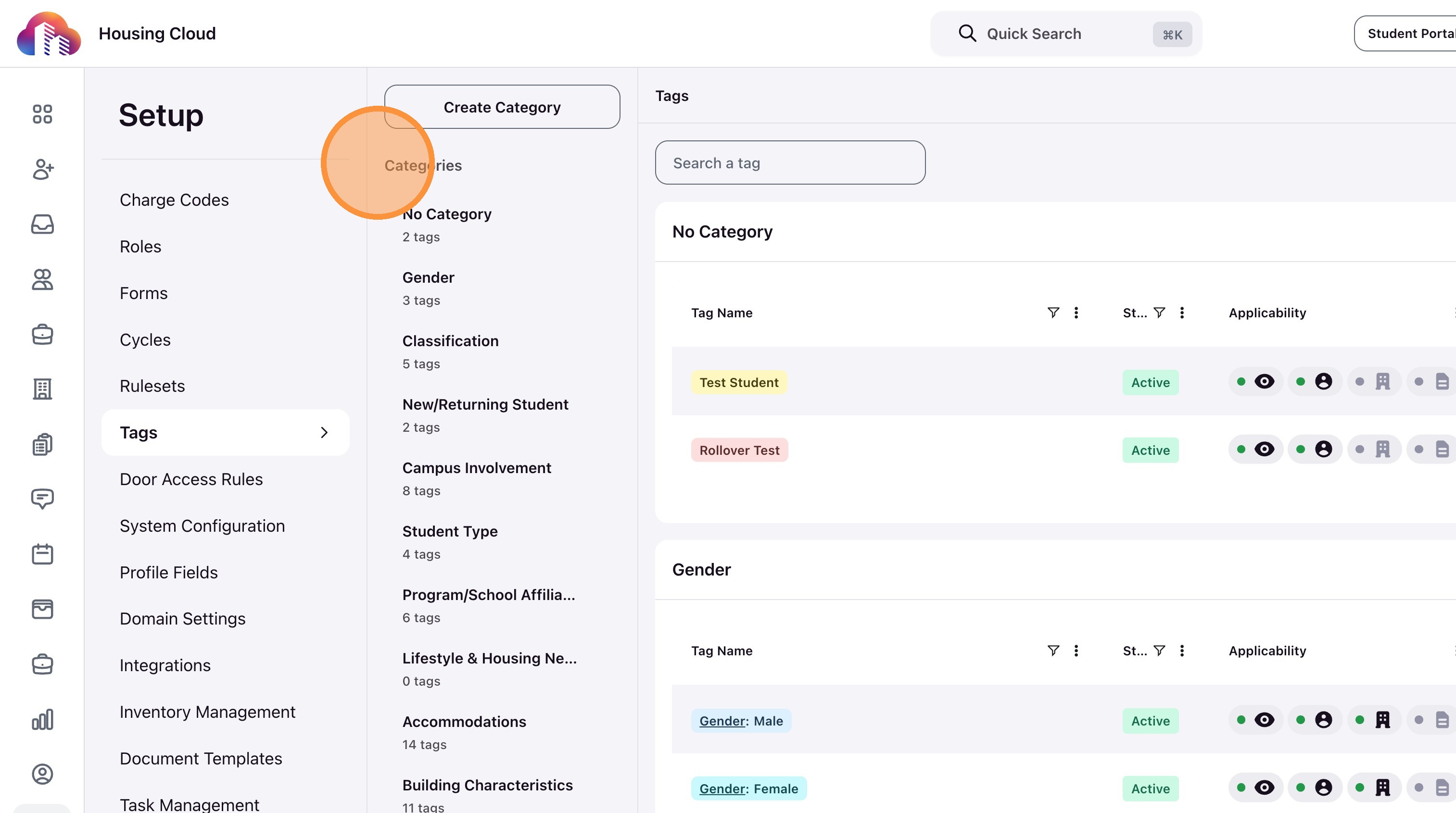
Tag Categories
Tags are organized into categories. Each tag can only belong to one category.
Example Categories:
- Housing Priority: Returning Resident, New Student, Transfer, Special Population
- Class Year/Status: First-Year, Sophomore, Junior, Senior, Graduate, Transfer
- Gender Identity: Male, Female, Non-Binary, Prefer Not to Answer
- Living Preferences: Early Riser/Night Owl, Quiet Study/Study with background noise, Guests/No Guests
Exclusive vs Non-Exclusive Categories
- Exclusive Category: A student can only have ONE tag from this category (e.g., Class Year—you can't be both First-Year and Senior)
- Non-Exclusive Category: A student can have MULTIPLE tags from this category (e.g., Interests—you can be tagged "Outdoor Enthusiast" AND "Music Lover")
Why this matters: Exclusive categories ensure data integrity. If "Gender Identity" is exclusive, the system won't let you accidentally tag someone as both "Male" and "Female." Non-exclusive categories allow flexibility for multi-faceted characteristics.
Public vs Private Tags
Public Tags
Visible to both admins and students. Students see these tags in their profile and during roommate finder browsing.
Examples: Sleep Schedule tags, Study Habits tags, Interest tags, Major/Academic tags
Purpose: Help students find compatible roommates by browsing public tags in the roommate finder.
Private Tags (Admin-Only)
Visible only to admins. Students never see these tags.
Examples: Priority Review, Late Fee Waived, Disability/Accessibility Accommodation, Data Import Batch 2024-08
Purpose: Track internal information and workflows without exposing data to students that may be sensitive and/or for administrative purposes only.
Privacy consideration: Always use private tags for sensitive information. Public tags should only contain information you're comfortable with students seeing about themselves and potential roommates.
Viewing Tags
To see what tags are assigned to a student, click their name from any table (Profiles, Applications, Residents). Tags appear as colored badges in the overview section. Click the Tags tab to see all profile tags and application tags organized by category.
How Tags Drive Automation
Tags aren't just for organization—they power automation throughout Housing.Cloud:
Roommate Matching Rules
Rulesets (configured in PLS-3 and PLS-4) use tags to match compatible roommates.
Examples of the types of rulesets:
- Hard Rules: "Gender Identity" tags must match exactly (required)
- Soft Rules: "Sleep Schedule" tags should match (preferred, scored)
Room Selection Restrictions
Inventory tags control which students can see and select which rooms:
- Rooms tagged "First-Year Only" only appear for students with "Class Year: First-Year" tag
- Rooms tagged "Honors Housing" only appear for students with "Honors Program" tag
Communications Targeting
When sending communications, you can target specific tag populations:
- Send move-in instructions only to students with "Early Move-In Approved" tag
- Send parking info only to students with "Vehicle Registered" tag
Reporting and Analytics
Filter and export data by tags:
- Generate occupancy report for "Substance-Free Housing" rooms
- Count how many "International Students" applied this cycle
- Track retention rates for "Transfer Students"
Tags vs Custom Fields
When should you use a tag vs a custom field?
- Use Tags when: You need to filter, group, or automate based on categories (Sleep Schedule, Housing Priority, Room Features)
- Use Custom Fields when: You need to capture unique text or data that doesn't fit into categories (Parent Phone Number, Emergency Contact Address, Allergy Details)
Rule of thumb: If the information fits into predefined options and you'll filter or match on it, use tags. If it's freeform text or unique to each student, use custom fields.
Real-World Scenarios
Scenario 1: Finding All Athletes for Priority Housing
Your athletics department wants priority housing for all student-athletes.
Solution: Filter Profiles by Tag: "Student-Athlete" → Save as custom view: "All Athletes" → Use this view when assigning housing to ensure athletes get priority consideration.
Scenario 2: Finding ADA Accessible Rooms
A student with mobility needs is applying. You need to see which rooms are wheelchair accessible.
Solution: Filter Inventory → Rooms by Tag: "ADA Accessible" → View all accessible rooms with availability status → Assign student to one of these rooms.
Scenario 3: Targeted Move-In Communications
Athletes and RAs need early move-in instructions, but regular students move in a week later.
Solution: Create broadcast → Filter recipients by Tag: "Early Move-In Approved" → Send targeted move-in instructions → Only tagged students receive the message.
Scenario 4: Manually Matching Roommates by Sleep Schedule
You're manually assigning roommates and want to avoid pairing Early Risers with Night Owls.
Solution: Filter Applications by Tag: "Sleep Schedule: Early Riser" → Assign these students to rooms together → Repeat for "Night Owl" students → Minimize sleep schedule conflicts.
What You'll Learn in PLS-3 and PLS-4
This article introduced you to understanding tags, their purposes and uses.
In PLS-3: Introduction to Housing Cycles, you'll learn:
- What cycles are, exploring a sample cycle
- Understanding phases of a cycle
- What pieces you need to build a cycle (tags being a key factor)
In PLS-4: Tags & Rulesets, we will take a deeper dive tying together information from this PLS-2 and from PLS-3 to look at how Rulesets efficiently set up Housing assignments/selection processes of a cycle.
What's Next
You've completed Product Learning Session 2!
Next steps:
- Review PLS-2: Product Learning Session 2: Understanding Your Housing Data—Review all modules and key takeaways
- Start PLS-3: Forms & Tags—Learn how to build application forms and create tag categories
- Practice in Sandbox: Filter profiles by tags, view application tags, and explore inventory tags to reinforce what you've learned